Draw the Other Half Controls & Drawing Tools
Master brush, color, and undo on PC or touch so the timer never beats your UI.
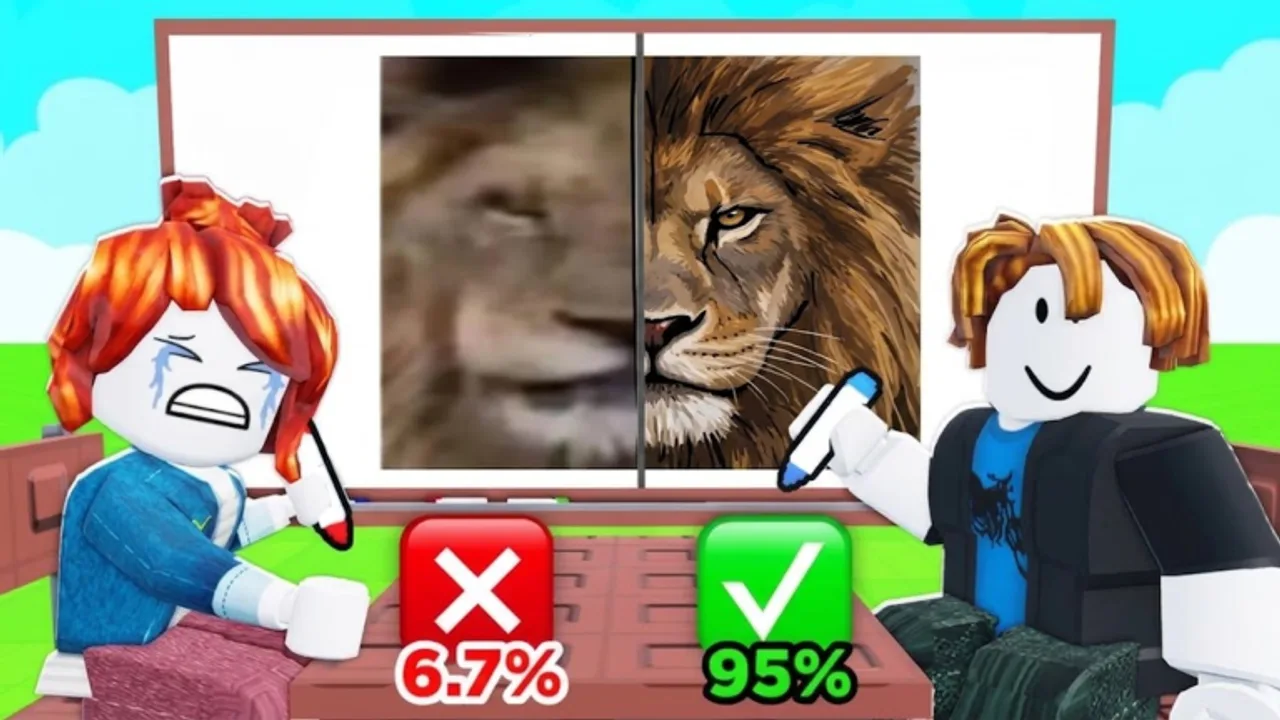
Great accuracy in Draw the Other Half dies on bad tool habits. You can know exactly how the other half should look and still lose if undo is slow, brush size is wrong, or color picks eat half the timer. This page is the device-agnostic controls and canvas guide—pair it with How to Win for scoring strategy and Getting Started for your first session. More walkthroughs live on the Guides Hub.
Roblox input varies by platform, and the game’s drawing HUD can receive tweaks after launch. Treat the sections below as habits and tool roles you should locate in your UI every session, then adapt to the latest button layout.
Tool roles you must find every round
Before the first duel of the day, click or tap through the drawing bar and confirm you can reach:
| Tool / action | What it is for | Failure mode if missing |
|---|---|---|
| Brush / pen | Primary strokes and outlines | You cannot place lines at all |
| Brush size | Thick blocks vs thin details | Outlines too fat or fills too slow |
| Color picker / swatches | Matching the visible half | Wrong palette kills score |
| Fill / bucket (if present) | Large flat regions | Wasted time hatching big areas |
| Eraser | Soft corrections without full undo | Muddy overpaints |
| Undo | Instant rollback of bad strokes | Panic layers on mistakes |
| Redo (if present) | Restore an undo you regret | Fear of undoing |
| Clear (use carefully) | Full reset | Accidental wipe near timer end |
If any of these are buried in a hamburger menu on mobile, open that menu once in lobby practice so muscle memory exists before a ranked-feeling duel.
PC habits
- Sit close enough that small brush work does not require giant arm motions.
- Use a mouse with a reliable left click; flaky click-drag creates gaps in outlines.
- Keep your non-drawing hand near Undo (often a UI button; some experiences also map common shortcuts—verify in your build).
- Zoom the camera or canvas if the game allows—pixel-chasing thin anime lines is easier when the half-picture is large on screen.
- Disable overlapping Roblox OSK or chat focus mid-draw; accidental chat capture steals keystrokes.
Keyboard movement (WASD) still matters in the lobby, on Art Parkour, and when walking between tables—but during the canvas phase your focus is pointer + HUD, not sprinting.
Mobile and touch habits
Touch is fully supported for this Party & Casual drawing genre, but it needs discipline:
- Grip the device with both hands when possible; thumb-only drawing wobbles outlines.
- Increase brush size for silhouettes; shrink only for eyes, text, and seam joins.
- Rest the side of your palm outside the canvas so you do not plant accidental dots.
- Learn the exact undo hitbox—mis-taps that open the wrong panel waste seconds.
- Turn on Do Not Disturb; notification banners mid-stroke are free losses.
- If your phone overheats and frames drop, lower Roblox graphics so stroke preview stays honest.
Many players prefer mobile for couch sessions and PC for Hard Mode farming. Neither is required—consistency beats hardware flex.
Brush size playbook
Match size to phase, not to vibes:
- Large — Backgrounds, body fills, big emoji heads.
- Medium — Primary outlines and limb tubes.
- Small — Seam repairs, facial features, Hard Mode filigree.
Switch sizes on purpose. Staying on tiny brush for an entire animal body is how timers expire with a hollow outline. Staying on huge brush for anime eyes is how you blob the midline.
Color workflow
- Identify the dominant color on the given half before you stroke.
- Select that swatch and lay the big fill or outline in the matching hue.
- Add secondary colors only after the main mass reads correctly.
- Avoid inventing a shading style the reference does not use—flat refs want flat tools.
- On emoji / logo themes, palette accuracy matters more than texture brushes.
If the HUD offers eyedropper sampling from the canvas, use it to clone colors already placed on your half so gradients stay consistent. Do not assume you can sample the locked reference half unless the UI explicitly allows it.
Undo discipline
Undo is not shameful—it is ranked play.
- Undo immediately when a stroke crosses the midline wrong.
- Do not “fix” a bad jaw with twenty micro scribbles; rollback and place one clean arc.
- If you undo too far, redo if available; otherwise repaint the last good shape from memory quickly.
- Never clear the canvas in the final seconds unless the drawing is truly unsalvageable and you still have time for a new silhouette.
Canvas order tied to controls
Controls only help if you sequence them:
- Read the half (How to Win routine).
- Medium brush outline.
- Large fills / bucket.
- Seam joins with small brush.
- Details if time remains.
- Stop inventing new objects when the clock is red.
Hard Mode’s dense refs demand faster size switching—see Hard Mode.
Lobby, chairs, and non-draw controls
Outside the canvas you still need clean input:
- Sit at a table chair to queue duels—chairs are also cosmetics (Chairs and Cosmetics).
- Move with standard Roblox locomotion to reach parkour, reward stands, and free seats.
- Jump carefully on Art Parkour for the free +1 Win.
- Open reward UIs for dailies, playtime gifts, and group rewards without accidentally equipping the wrong chair mid-hunt.
Win Effects and server trolls (Nuke, Blur, Paint Splash, Fart) are usually activated from separate menus—learn those buttons in a calm moment so you do not open troll UI mid-draw by mistake.
Accessibility and comfort tips
- Bump UI scale in Roblox settings if HUD buttons are tiny on a high-res phone.
- Use a stylus if you own one; it recovers PC-like precision on tablets.
- Take a thirty-second hand shakeout between duels; cramped fingers destroy small brush work.
- Brightness high enough to see pastel refs; too-dim screens hide seam errors.
Practice checklist (five minutes)
- Enter a server, open the draw UI in a low-stakes way if possible, or memorize button positions from the first duel’s prep phase.
- Cycle brush sizes large → medium → small.
- Hit undo three times on purpose, then continue.
- Swap two colors under time pressure.
- Play one normal duel focusing only on clean tool use, not on Win Effects flex.
Then return to accuracy strategy in How to Win, or push payouts in Hard Mode. Keep the Guides Hub bookmarked for the rest.
Clean controls will not draw the picture for you—but sloppy controls will lose pictures you already understood.
Frequently Asked Questions
Quick answers to the most common questions.
Does Draw the Other Half support mobile drawing?
Yes. Use touch carefully: both-hand grip when possible, correct brush sizes, and learn the undo hitbox before Hard Mode. PC mouse is optional, not required.
What tools should I locate before a duel?
Brush, brush size, colors, erase or undo, and any fill tool. Confirm them in the HUD so you are not hunting buttons after the timer starts.
When should I change brush size?
Large for big fills, medium for main outlines, small for seams and details. Switching on purpose saves more time than staying on one size.
Is undo better than painting over mistakes?
Usually yes. Immediate undo keeps the canvas clean. Layering fixes on a wrong silhouette rarely beats a fresh correct stroke.
Do controls differ in the lobby versus on the canvas?
Yes. Lobby uses normal Roblox move/jump for tables and art parkour. The canvas phase is pointer and drawing HUD focused—do not open troll menus mid-draw.